

How Dema works in Slack
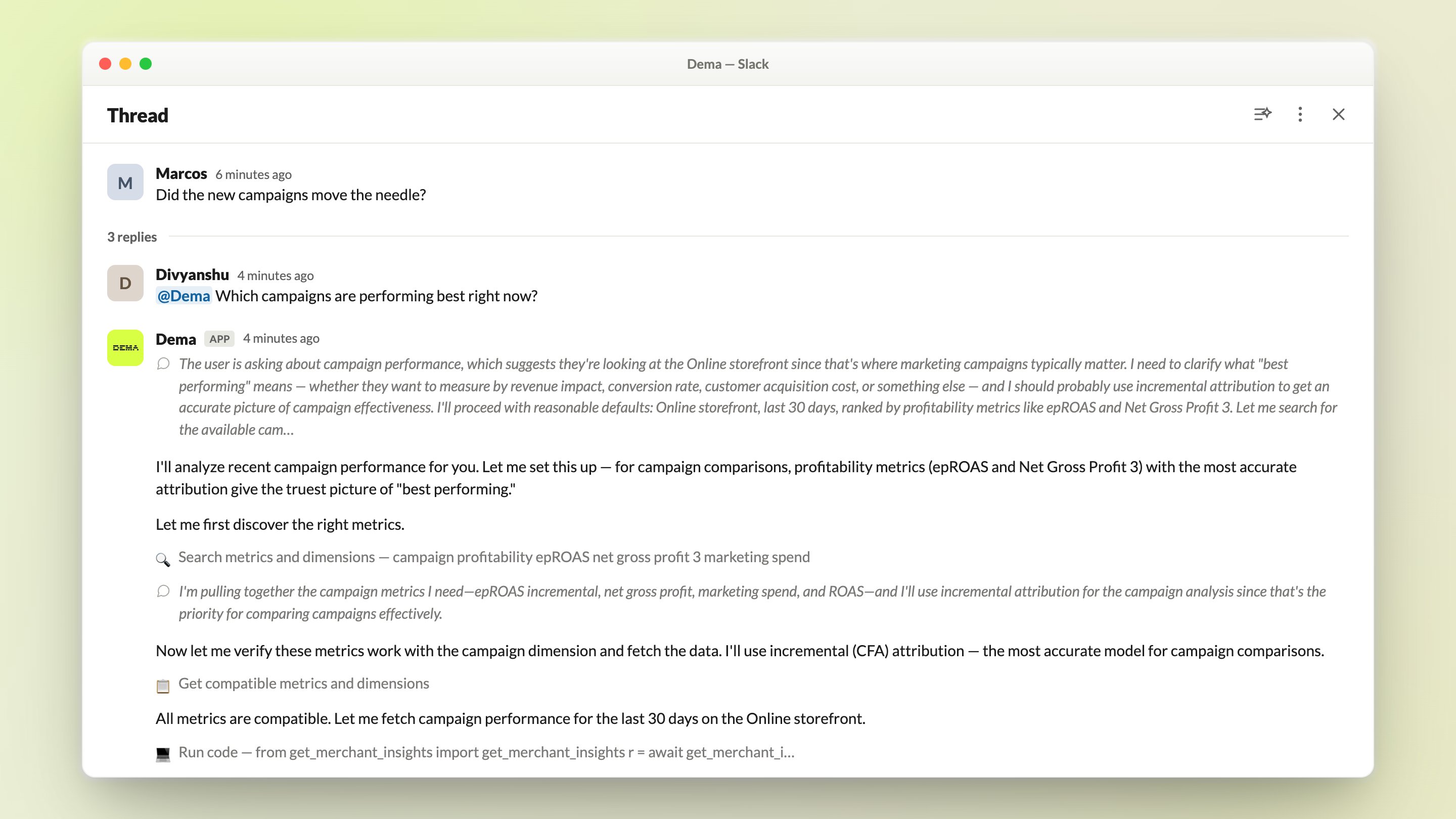
Once connected, the Dema Agent is available across your workspace:- Ask anything about your store in a direct message. Send Dema a question like “How is revenue trending this week?” or “Which campaigns are performing best right now?” and get a data-backed answer in seconds.
- @-mention Dema in a channel or thread. Pull answers, summaries, and analysis straight into a team discussion. Once engaged in a thread, Dema follows the conversation and can reference earlier messages for context.
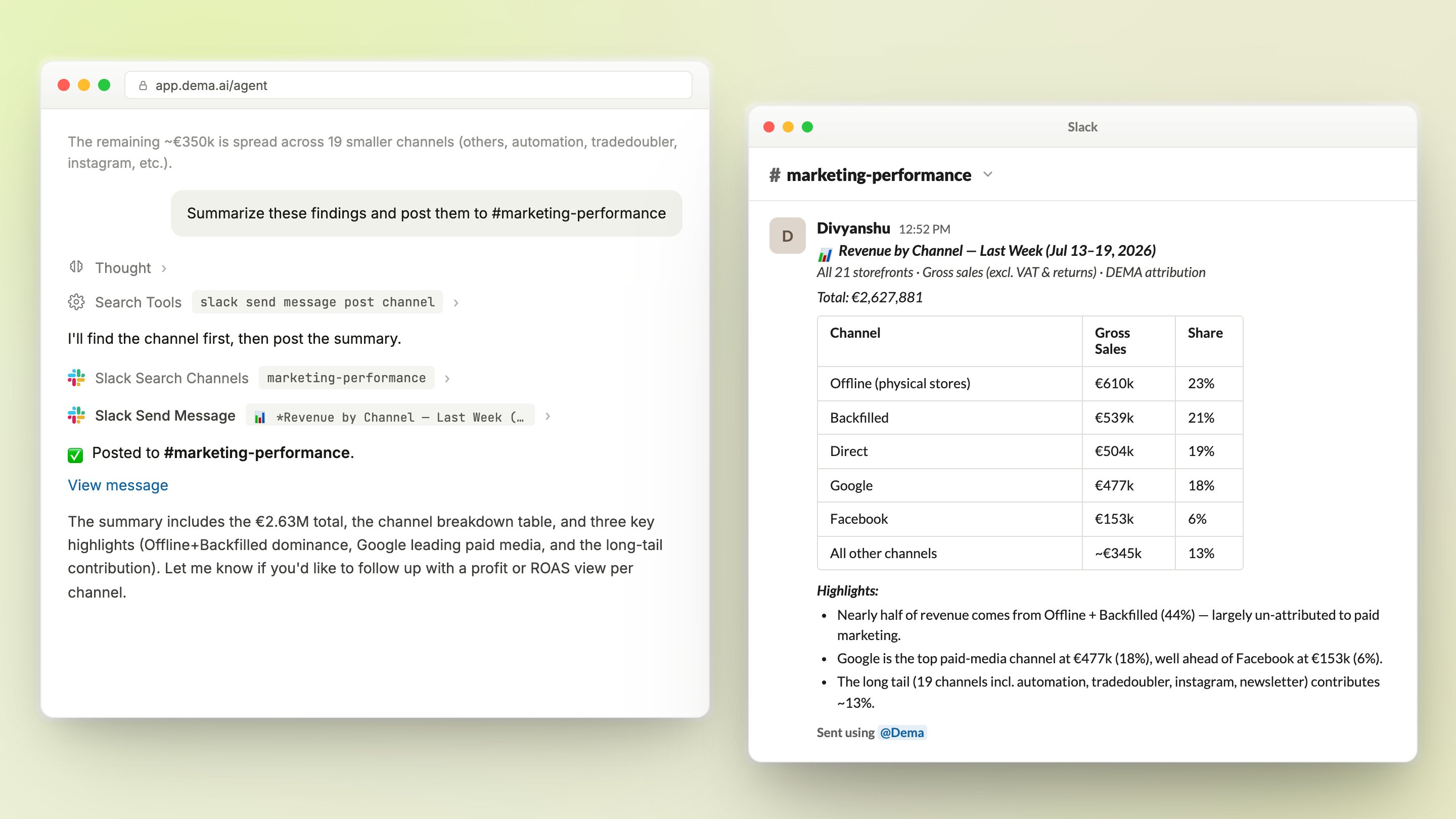
- Bring Slack into your Dema analyses. Once you link your Slack account, the Dema agent can act on your behalf through Slack’s MCP integration — directly from the agent view in app.dema.ai. Ask it to search conversations and channel history for context, summarize your analysis findings and post the summary to the relevant channel or thread, capture findings in Slack canvases, or look up workspace members. Everything is bounded by what your own Slack user can already see and do.
Installation
Installing Dema for Slack takes two steps: a Dema admin connects the workspace, then each teammate links their own Slack account.1
Connect your Slack workspace (Dema admin)
- Sign in to Dema and go to Settings → Connected accounts.
- On the Slack card, find the Workspace row and click Install.
- Sign in to Slack and authorize the Dema app for your workspace.
- You are returned to Dema with the workspace shown as installed.
2
Link your Slack account (each user)
Each teammate goes to Settings → Connected accounts in Dema and, in the Your account row of the Slack card, clicks Link. Linking automatically connects the Slack agent integration for that user — no separate setup needed. This lets Dema search messages and act on that person’s behalf, respecting exactly what their Slack user can already see.
Using Dema in Slack
Direct messages
Open a DM with Dema and ask a question in plain language. Dema streams its answer as it works, showing which data it is looking at along the way.How is revenue trending this week?
Channels and threads
Invite Dema to a channel and @-mention it to bring data into a discussion. After you have engaged it in a thread, you can reply without mentioning it again and it will keep following along.@Dema which campaigns are performing best right now?
From Dema back to Slack
Working in the agent view at app.dema.ai? With your Slack account linked, the agent can use Slack’s MCP integration on your behalf. When you finish an analysis, ask it to share the results where your team will see them:Summarize these findings and post them to #marketing-performanceThe agent writes the summary to the channel using your linked Slack account, so it can only post where you can post.
Permissions and data
Dema only accesses what you authorize, and respects Slack’s permission model on every request:- Messages and history in channels, group messages, and DMs where the Dema app has been invited or where you have linked your own account. Your linked account can never reach conversations your Slack user cannot see.
- Profile information (names and email addresses) to resolve mentions and route responses correctly.
- Workspace metadata such as channel lists and canvases you can access.
Good to know
A paid Slack plan is required for AI assistant UI functionality in Slack. Direct messages and channel mentions work on all plans.
Only users with a Dema account can link their Slack account and query the agent.
FAQ
Who can install Dema for Slack?
Who can install Dema for Slack?
A Dema admin with an active Dema subscription connects the workspace from Settings → Connected accounts in Dema. Installing the app in Slack also requires permission to add third-party apps; if your workspace restricts installs, a Slack admin needs to approve Dema.
What data does Dema read from Slack?
What data does Dema read from Slack?
Dema reads messages in conversations where the app has been invited or where a user has linked their account, plus profile information and workspace metadata needed to answer requests. Per-user access is limited to what that user’s own Slack account can see. See Permissions and data above.
How do I disconnect or uninstall, and what happens to my data?
How do I disconnect or uninstall, and what happens to my data?
A Dema admin disconnects the workspace and individual users unlink their own Slack account from Settings → Connected accounts in Dema, or you can remove the app from your Slack workspace. Either way, stored OAuth tokens and user account links are deleted. For data requests beyond that, contact info@dema.ai.
The connection failed — what should I check?
The connection failed — what should I check?
The most common cause is a workspace that restricts third-party app installs: ask your Slack admin to approve Dema, then retry from Settings → Connected accounts. If the problem persists, contact info@dema.ai.
How do I get support?
How do I get support?
Email info@dema.ai, or reach out through your customer success channel if your team has one.