

Spend recommendation table
The spend recommendation table is the primary tool for understanding what changes the model recommends for each channel.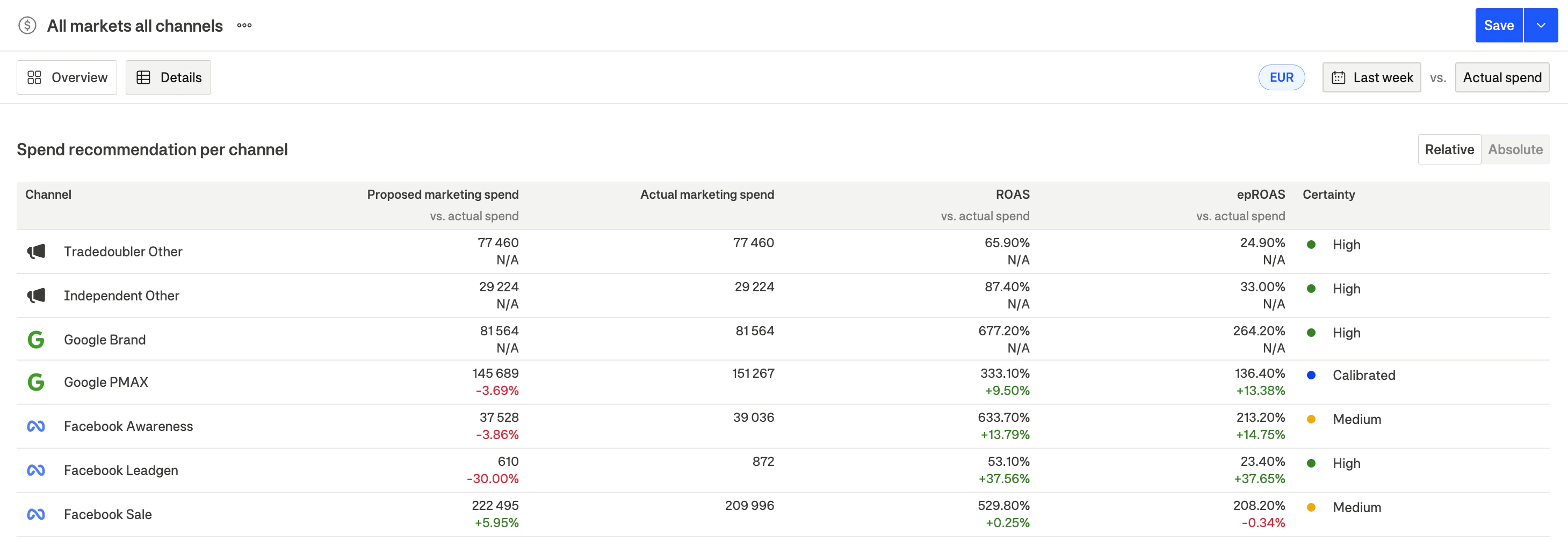
Table columns
Understanding the certainty column
Each channel displays a certainty indicator based on data quality and calibration:Summary rows
The table includes summary rows at the bottom:Relative vs. Absolute toggle
Use the Relative / Absolute toggle in the table header to switch between:- Relative: Shows percentage changes (e.g., +15%, -8%)
- Absolute: Shows actual currency amounts (e.g., €3,000)
Channel contribution chart
The contribution chart shows how each channel has contributed to your target metric over time.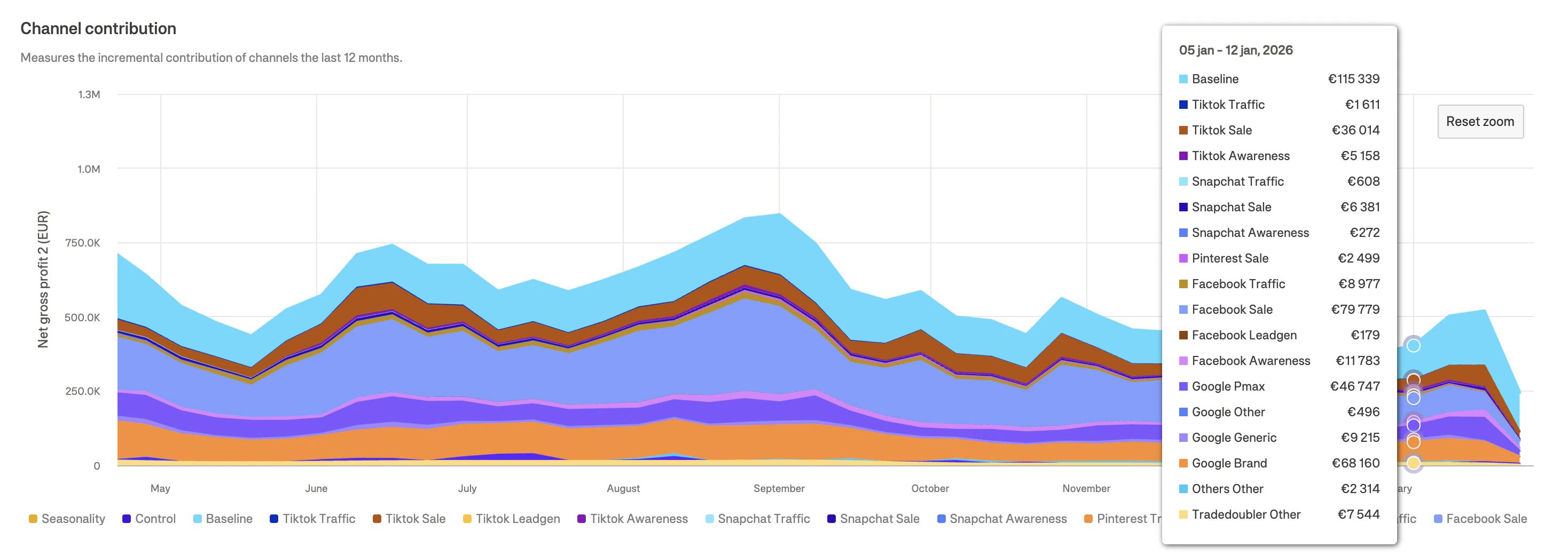
Reading the chart
- X-axis: Time (weekly)
- Y-axis: Contribution to target metric
- Colored areas: Stacked contribution from each channel
What it shows
- Channel mix evolution: How the balance of channel contributions changes over time
- Seasonality patterns: Peaks and troughs in overall performance
- Baseline contribution: The dark area at the bottom showing organic/brand performance
Saturation spend chart
The saturation chart visualizes the diminishing returns curve for each channel, showing the relationship between spend and profit.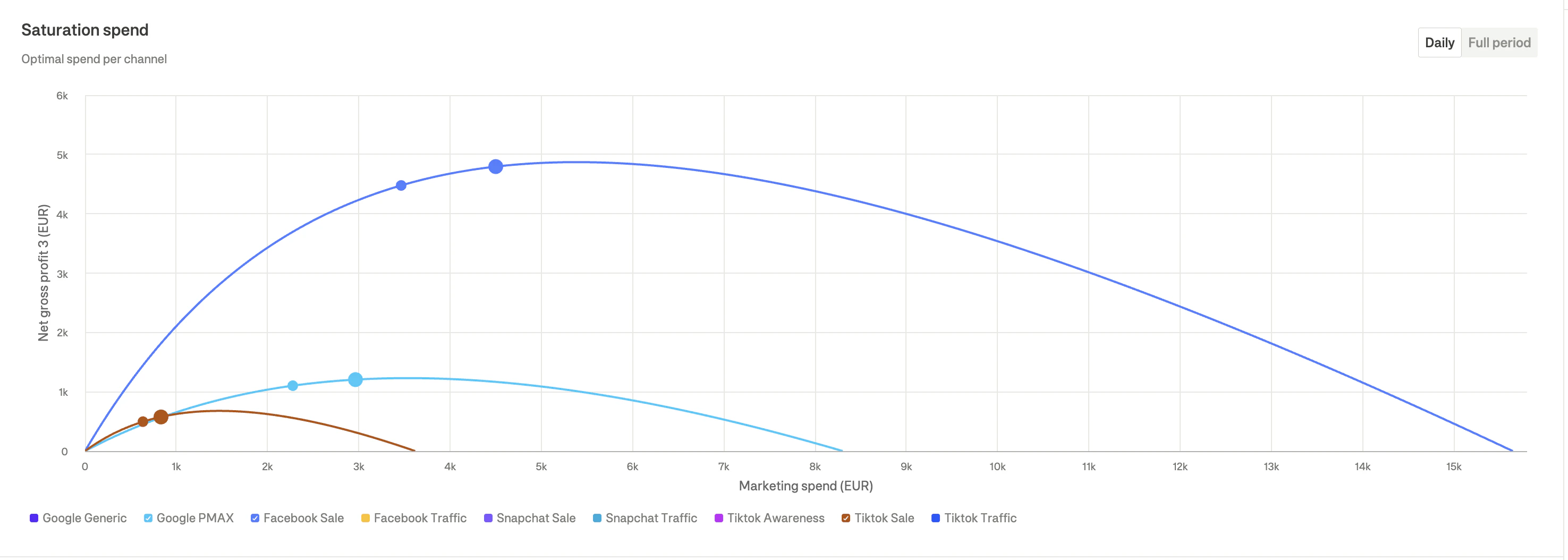
Understanding saturation curves
Each curve shows:- X-axis: Marketing spend amount
- Y-axis: Contribution to target metric
- Curve shape: How returns diminish as spend increases
Key points on the curve
Interpreting the curves
- Steep early curve: Channel has high efficiency at lower spend levels
- Flat curve: Channel is near or past saturation
- Dot to the right of optimal: You’re overspending on this channel
- Dot to the left of optimal: You’re underspending—room to scale
Daily vs. Full period toggle
Use the toggle to switch between:- Daily: Shows curves based on daily parameters (more granular)
- Full period: Shows aggregated curves for the entire selected period
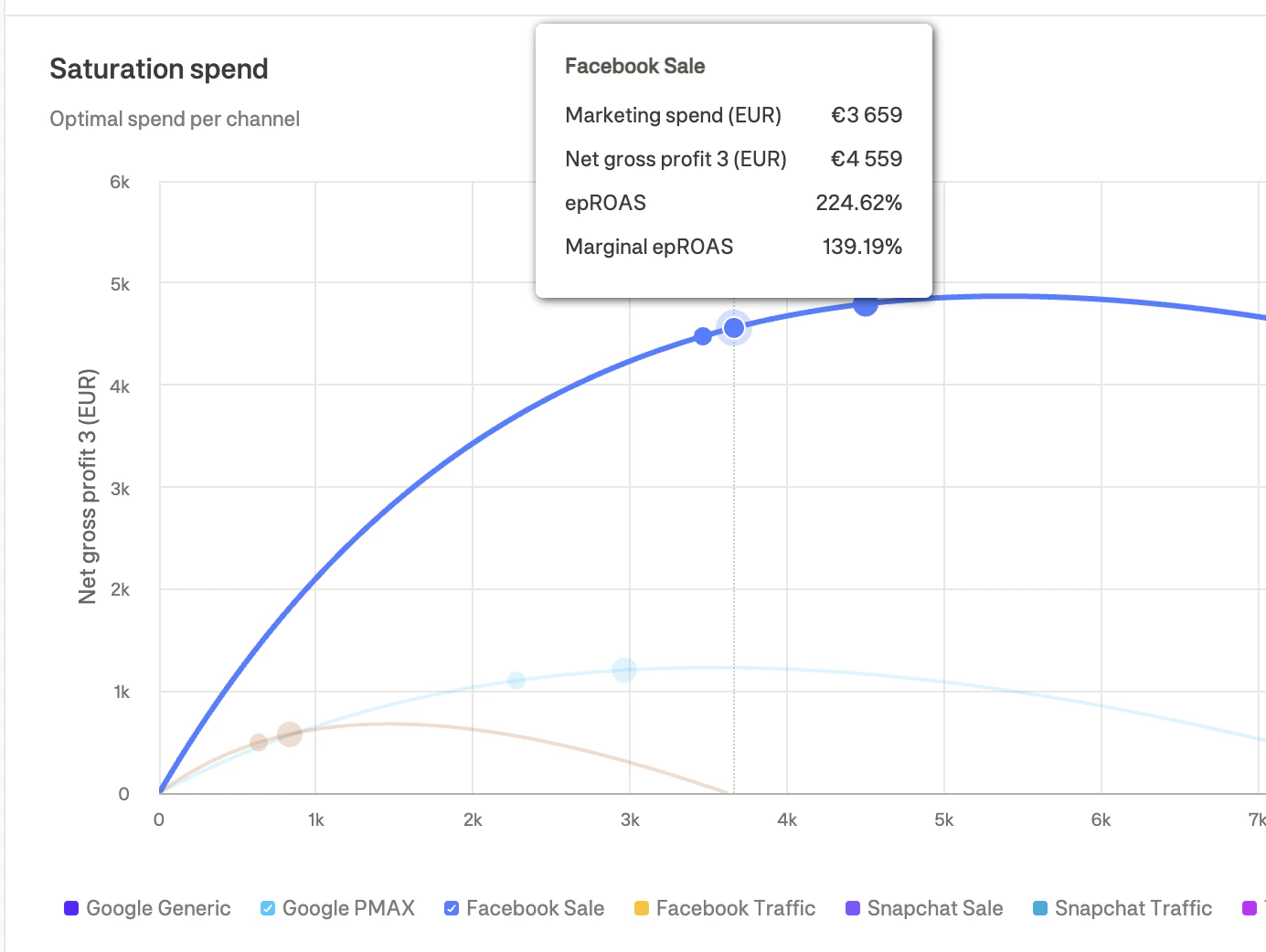
Tooltip information
Hover over any point on the curve to see:- Channel name
- Marketing spend amount
- Target metric contribution
- Return at that spend level
- Marginal return (incremental return on next dollar)
Cumulative adstock effect chart
The adstock chart shows how advertising effects accumulate over time for each channel.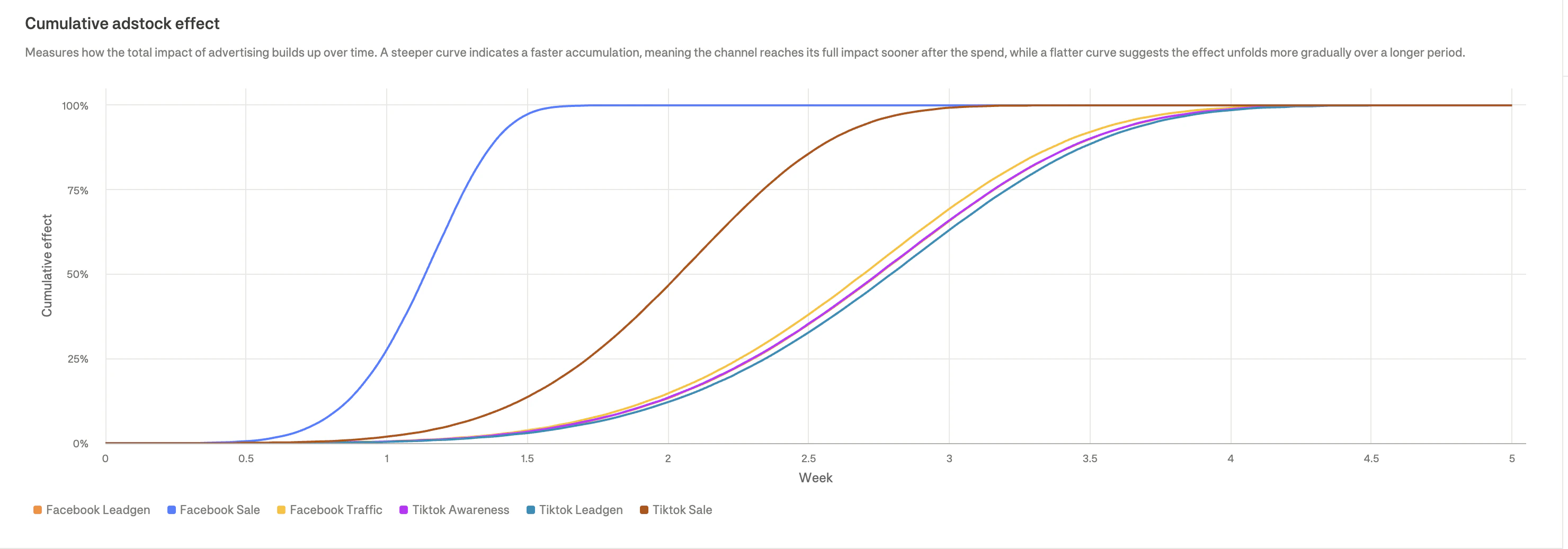
Understanding adstock
Adstock represents the carryover effect of advertising:- When you spend on a channel, the impact doesn’t happen instantly
- Effects build up over days/weeks before reaching full impact
- Eventually, effects decay as the advertising impression fades
Reading the chart
- X-axis: Time (weeks after spend)
- Y-axis: Cumulative effect (0% to 100%)
- Curves: Each channel’s accumulation pattern
Interpreting adstock curves
Practical implications
- Fast adstock channels: Changes in spend will show results quickly (1-2 weeks)
- Slow adstock channels: Need patience—full impact takes 4+ weeks to materialize
- Testing considerations: Allow sufficient time for experiments on slow-adstock channels
Missed potential chart
The missed potential chart compares actual performance against what could have been achieved with optimal spend allocation, based on your configured Model settings (optimization target, budget constraints, and guardrails).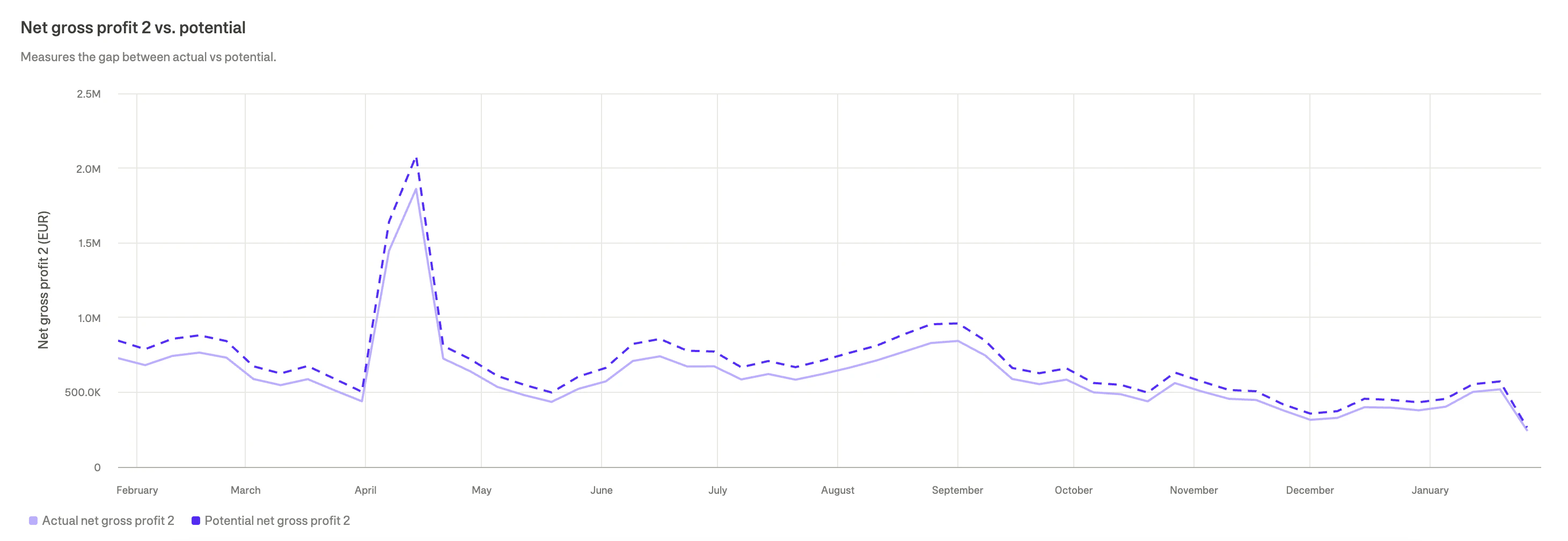
Reading the chart
The chart shows two bars:- Actual profit: What you actually achieved
- Potential profit: What optimal allocation would have achieved within your configured constraints
Using missed potential data
- Quantify opportunity: Understand the value of optimization in concrete terms
- Prioritize action: Large missed potential indicates high-priority optimization opportunities
- Track improvement: Monitor how missed potential decreases as you implement recommendations
Filtering and aggregating the Details view
Use the View panel on the right sidebar to customize what’s displayed and how data is organized.Aggregation (pivot)
The aggregation setting allows you to pivot your data by different dimensions. This is one of the most powerful features for analyzing your marketing performance from different angles.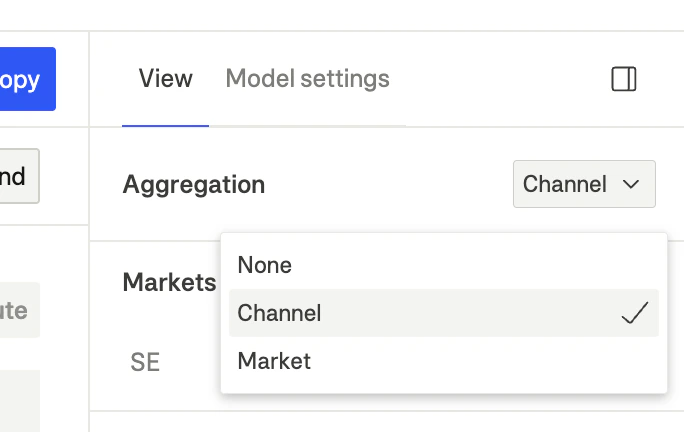
Markets filter
Filter which geographic markets are included in the analysis:- Expand the Markets section in the View panel
- Check/uncheck markets to include or exclude them
- Use Select all to quickly include all markets
Channels filter
Filter which marketing channels are displayed:- Expand the Channels section in the View panel
- Check/uncheck channels to show or hide them
- Use Select all to quickly include all channels
- Platform analysis: Show only Meta or Google channels
- Funnel analysis: Show only awareness or performance channels
- Focus view: Hide channels that aren’t relevant to your current analysis
Metrics filter
Control which metrics appear in tables:- Expand the Metrics section in the View panel
- Check/uncheck metrics to show or hide them
- Marketing spend
- New customer NGP2 + LTV
- Net gross profit 3
- Net gross profit 2
- Gross sales
- ROAS
- epROAS
Date range selection
The date range affects what period is analyzed:Historical analysis helps validate model accuracy and understand what could have been achieved. Future analysis provides actionable recommendations for upcoming budget decisions.
From analysis to action
Implementing recommendations
- Review the spend table: Identify channels with significant recommended changes
- Check certainty: Prioritize high-certainty channels
- Verify with curves: Confirm the recommendation makes sense given the saturation curve
- Consider adstock: Account for timing when setting expectations
- Apply changes gradually: Respect guardrails to avoid disrupting ad algorithms
Weekly workflow
- Monday: Review last week’s Details to understand performance
- Analyze: Check which recommendations you implemented and their results
- Plan: Use forward-looking analysis for next week’s budget allocation
- Implement: Update budgets in ad platforms based on recommendations
- Monitor: Track early signals (CPC, CTR) to validate changes