

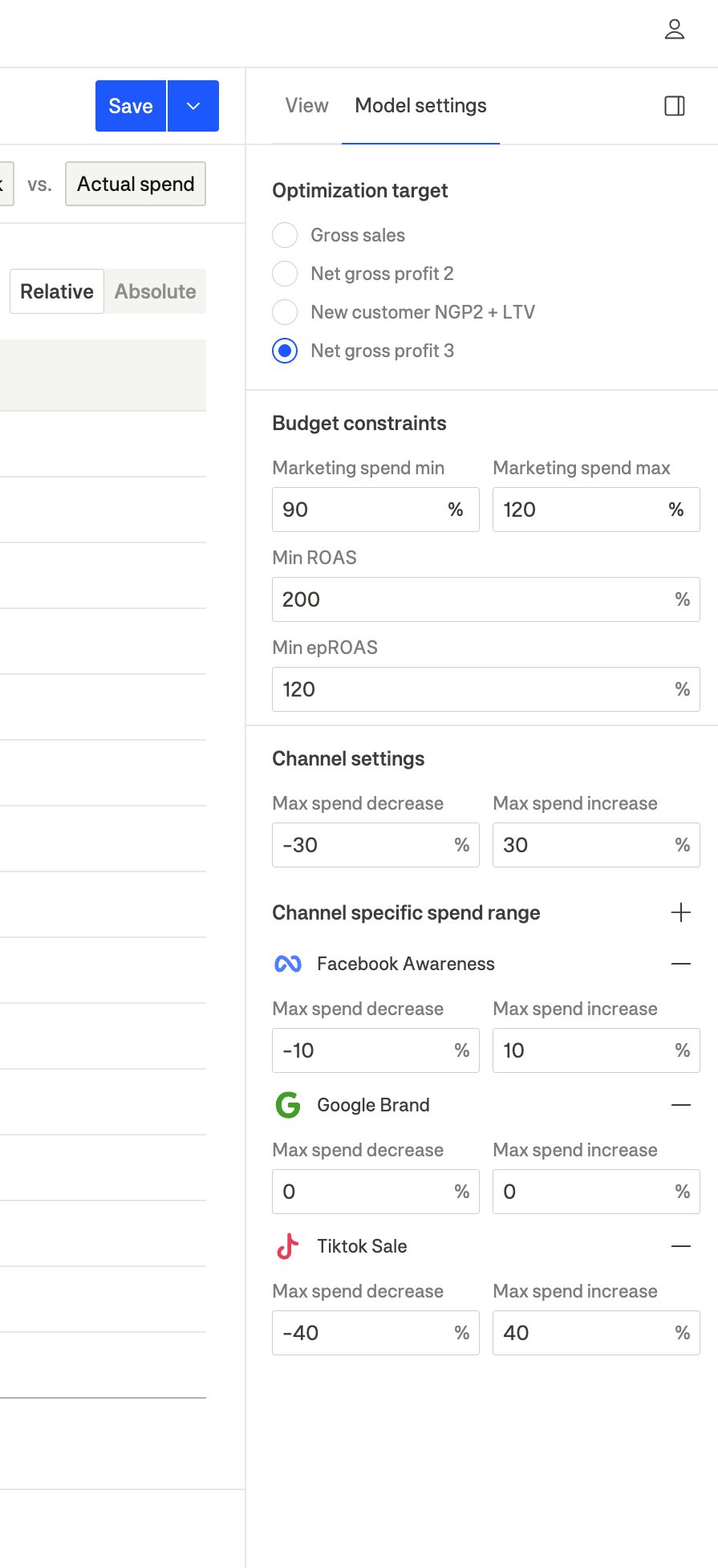
Optimization target
The optimization target determines what metric the model optimizes for when calculating recommended spend allocations.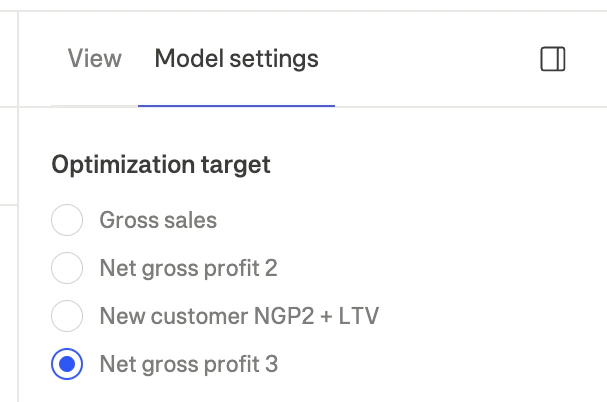
Available targets
How to change the target
- Open the Model settings tab in the right sidebar
- Under Optimization target, select your desired metric
- The entire view will update to show recommendations optimized for that target
Budget constraints
Budget constraints set overall limits on the optimization recommendations.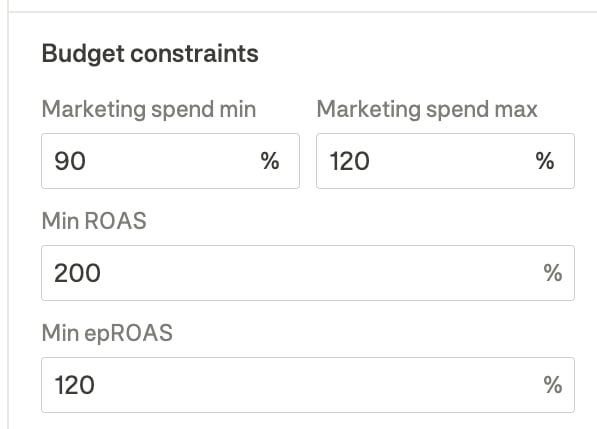
Marketing spend limits
Performance constraints
Setting aggressive return constraints may limit the optimizer’s ability to find optimal allocations. Start with moderate thresholds and adjust based on results.
Channel settings (Guardrails)
Guardrails control how much the model can recommend changing spend on each channel. This prevents recommendations that are too aggressive and could disrupt ad platform algorithms.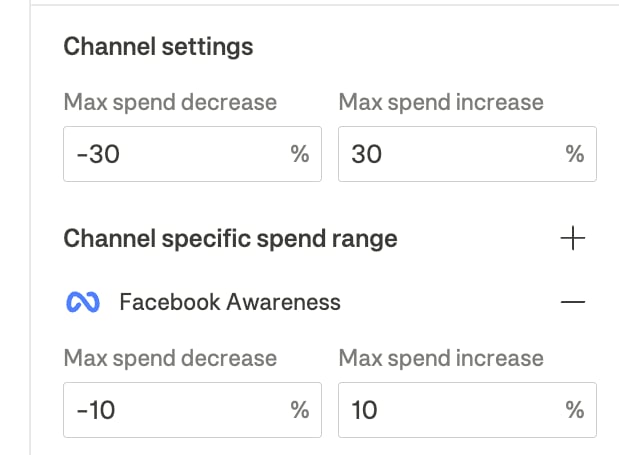
Global guardrails
Global guardrails apply to all channels by default:Channel-specific guardrails
You can override the global guardrails for specific channels that need different treatment:- Click the + button next to “Channel specific spend range”
- Select the channel you want to customize
- Set custom Max spend decrease and Max spend increase values
When to use channel-specific guardrails
- Lock a channel: Set both decrease and increase to 0% to keep spend unchanged
- Allow more flexibility: Increase the range for channels where you’re comfortable with larger swings
- Protect brand campaigns: Set conservative limits for brand search to maintain visibility
- Enable scaling: Allow higher increases for high-performing channels you want to scale
Example configurations
How constraints affect recommendations
The optimizer works within your defined constraints to find the best allocation:- Respects all guardrails: No channel will have recommendations outside its allowed range
- Optimizes within bounds: The model finds the best allocation possible given the constraints
- Reports missed potential: If constraints prevent reaching optimal allocation, you’ll see the potential profit gap
Very tight constraints may prevent the model from finding significant optimizations. If you see large “missed potential” values, consider relaxing some guardrails.
Saving your configuration
Model settings are saved as part of your MMM configuration: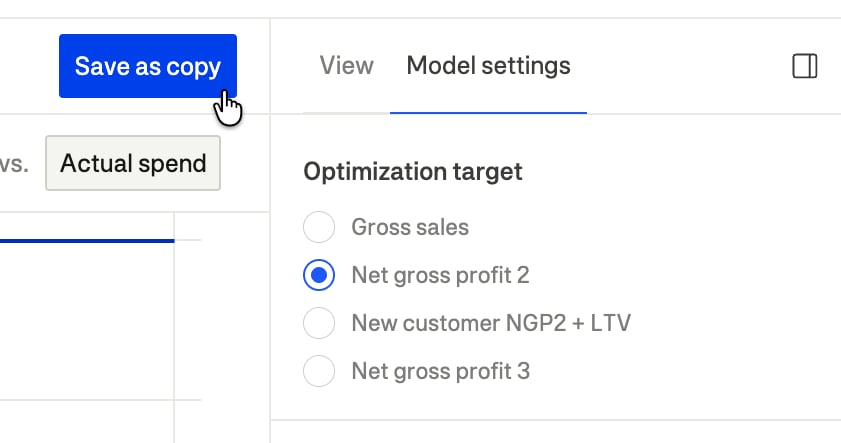
- Make your desired changes to optimization target, constraints, and guardrails
- Click the Save button to update the current configuration, or Save as copy to create a new configuration
- Your settings will be preserved for future sessions
Best practices
- Start conservative: Begin with the default ±30% guardrails and tighten only if needed
- Match business constraints: Set return thresholds that reflect your actual profitability requirements
- Review certainty indicators: Channels with “Medium” or “Run test” certainty may need tighter guardrails until more data is available
- Iterate gradually: Make small adjustments to constraints and observe how recommendations change
- Use channel-specific limits strategically: Lock channels only when you have specific business reasons (e.g., contractual minimums, brand protection)