

Accessing calibration settings
Navigate to Settings > Causal factor attribution in the Dema app to open the calibration configuration panel.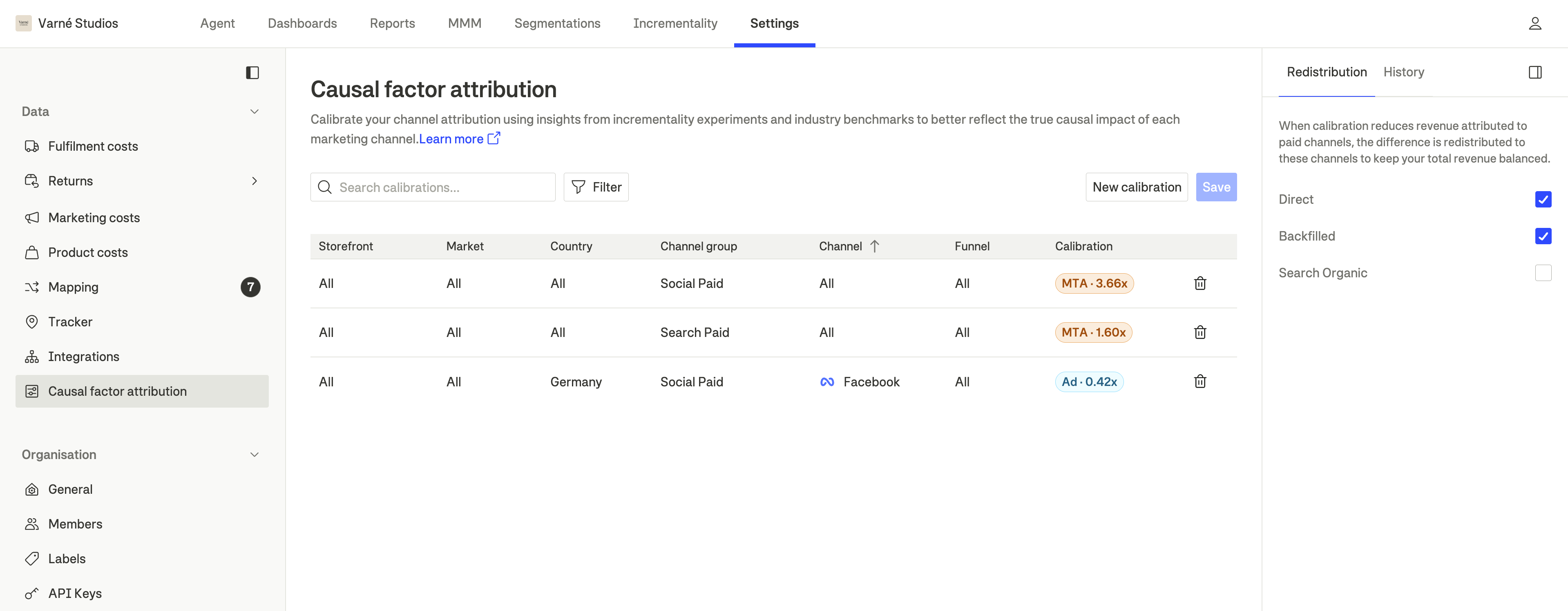
Understanding the benchmark distribution
Before setting any multiplier, review the incremental factor distribution shown for each channel. This bell curve represents the expected incremental ROAS based on:- Platform-wide experiments - Dema’s benchmark from all finalized incrementality experiments matching the channel
- Your own experiments - If you’ve run incrementality experiments, they refine the distribution and narrow the curve

Even if you haven’t run any incrementality experiments yet, Dema provides a benchmarked distribution based on experiments across the platform. This gives you a data-driven starting point rather than guessing.
- The peak represents the most likely incremental ROAS for this channel
- A wide curve means more uncertainty (fewer or more varied experiments)
- A narrow curve means high confidence (many consistent experiments)
- The mean is the recommended calibration starting point
Adding a calibration rule
Click New calibration to create a new rule. Each rule targets a specific scope of your marketing data.
Defining the scope
Each calibration rule can be scoped at multiple levels of granularity:- Channel group - Marketing category (e.g. Paid Social, Paid Search, Display)
- Channel - Specific ad platform (e.g. Meta, Google, TikTok)
- Funnel campaign - Campaign funnel stage (e.g. Lower funnel, Upper funnel)
- Market - Geographic market (e.g. SE, DE, US)
- Country - Specific country (e.g. Sweden, Germany)
- Storefront - Specific storefront (your store identifier)
Specificity matching
When multiple rules could match a data row, the most specific rule wins. Specificity is determined by how many fields are set to specific values (not set to All). Example:- Rule A: Paid Social / All / All / All with multiplier 0.8
- Rule B: Paid Social / Meta / All / SE with multiplier 0.6
Choosing the calibration type
For each rule, select how the calibration is applied:MTA
Multiplies the MTA-attributed value by the multiplier.Best for: Channels where MTA captures the journey well but over- or under-attributes the conversion.
Ad platform
Uses the ad platform’s reported value as the base, then applies the multiplier.Best for: Channels where ad platform reporting is more reliable than MTA tracking (e.g., limited cookie visibility).

Setting the multiplier
Use the slider to set the calibration multiplier. The bell curve distribution is shown alongside to help you choose an appropriate value.
The benchmark distribution’s mean is a good default starting point. If you’ve run your own incrementality experiments and they align with the benchmark, you can be more confident in using the mean. If your results diverge, favor your own experimental data.
Source channel groups
Source channel groups are channels that absorb the redistribution delta when other channels are calibrated. By default, these are typically:- Direct - Direct / type-in traffic
- Other unattributed - Sessions with no attributed marketing touchpoint
Version history
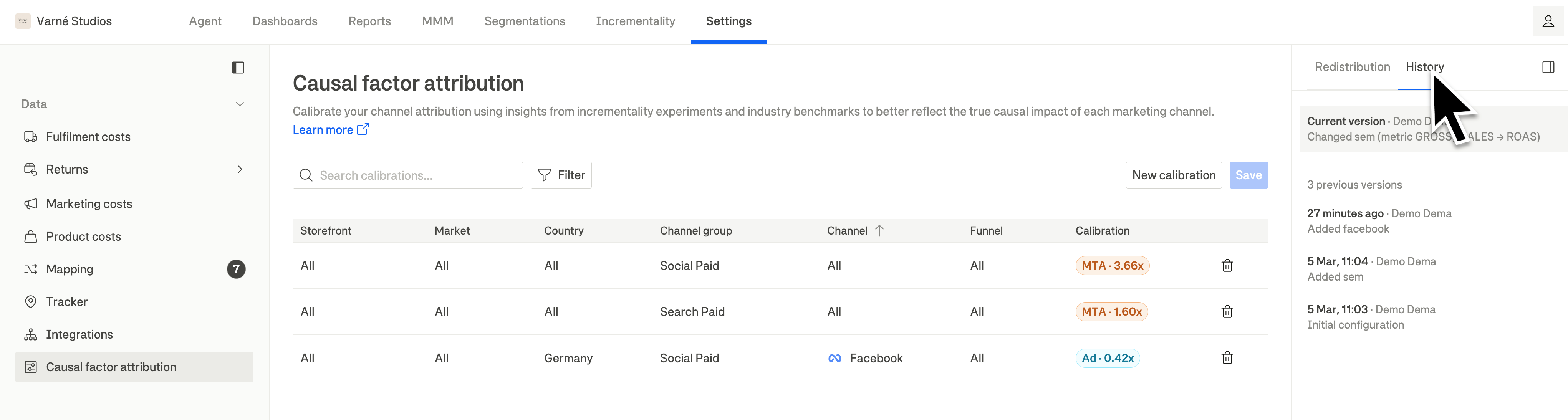
Every time you save a calibration configuration, a new version is created. You can:- View previous versions to see how your calibrations have changed over time
- Restore a previous version to revert to an earlier configuration
- See who saved each version for audit purposes
Saving your configuration
After configuring your calibration rules, click Save to persist your changes. The new configuration:- Is stored as a new version (the previous configuration is preserved in history)
- Takes effect on the next pipeline run (once a day every morning)
- Applies to all future attribution calculations until changed again
1
Review your rules
Verify that each calibration rule targets the correct scope and has an appropriate multiplier based on the benchmark distribution or your experiment results.
2
Check source channels
Ensure your source channel groups are configured correctly. In most cases, direct and other unattributed traffic are the right choices.
3
Save
Click Save to create a new configuration version. Your changes will take effect on the next scheduled pipeline run.