> ## Documentation Index
> Fetch the complete documentation index at: https://docs.dema.ai/llms.txt
> Use this file to discover all available pages before exploring further.
# Convert
> Let the Dema Agent read A/B test results and conversion goals from Convert.com, and create or control experiences when you ask.
## Overview
Once Convert is connected, the Dema Agent can pull live experimentation data from your Convert.com account — accounts, projects, experiences, reports (overall and daily), change history, and conversion goals — directly inside a conversation. With account management access, it can also act for you: create, update, clone, and start or pause experiences, and deploy the winning variation.
The agent only acts when you ask it to, and Dema asks you to confirm sensitive changes before they are applied.
***
## Prerequisites
* A Convert.com account with permission to create **API keys** (Account Settings → API-keys).
* The key must use **Request Signing** authentication (see below) — this is the only type Dema supports.
Convert offers two API key types: **Request Signing** and **Secret Key**. Dema signs every request with HMAC, so you must create a **Request Signing** key. A Secret Key will not authenticate.
***
## Connect Convert
1. In Convert, click your account name in the top-right corner and open **Account Settings**.
2. Go to the **API-keys** tab and click **New API key**.
3. Set **Key Name** to something recognizable such as `Dema Agent`.
4. Under **Select Project**, choose the projects the agent should work with (or **All Projects**).
5. Set **Access level** — pick **Account Manager** (account management access) if you want the agent to create or change experiences; a read-only level is enough for analysis only.
6. Under **Authentication Type**, select **Request Signing (Most Secure)**.
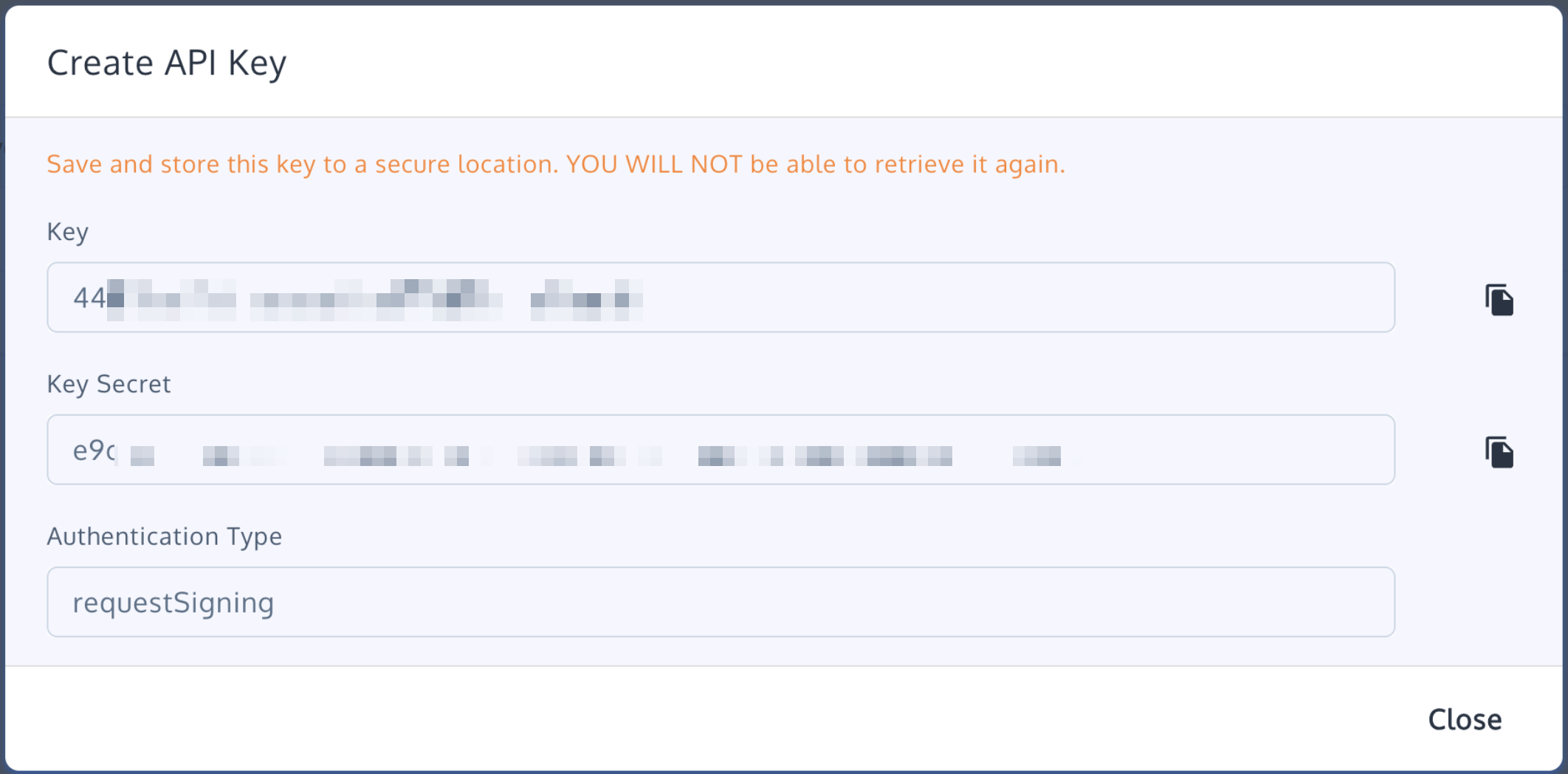
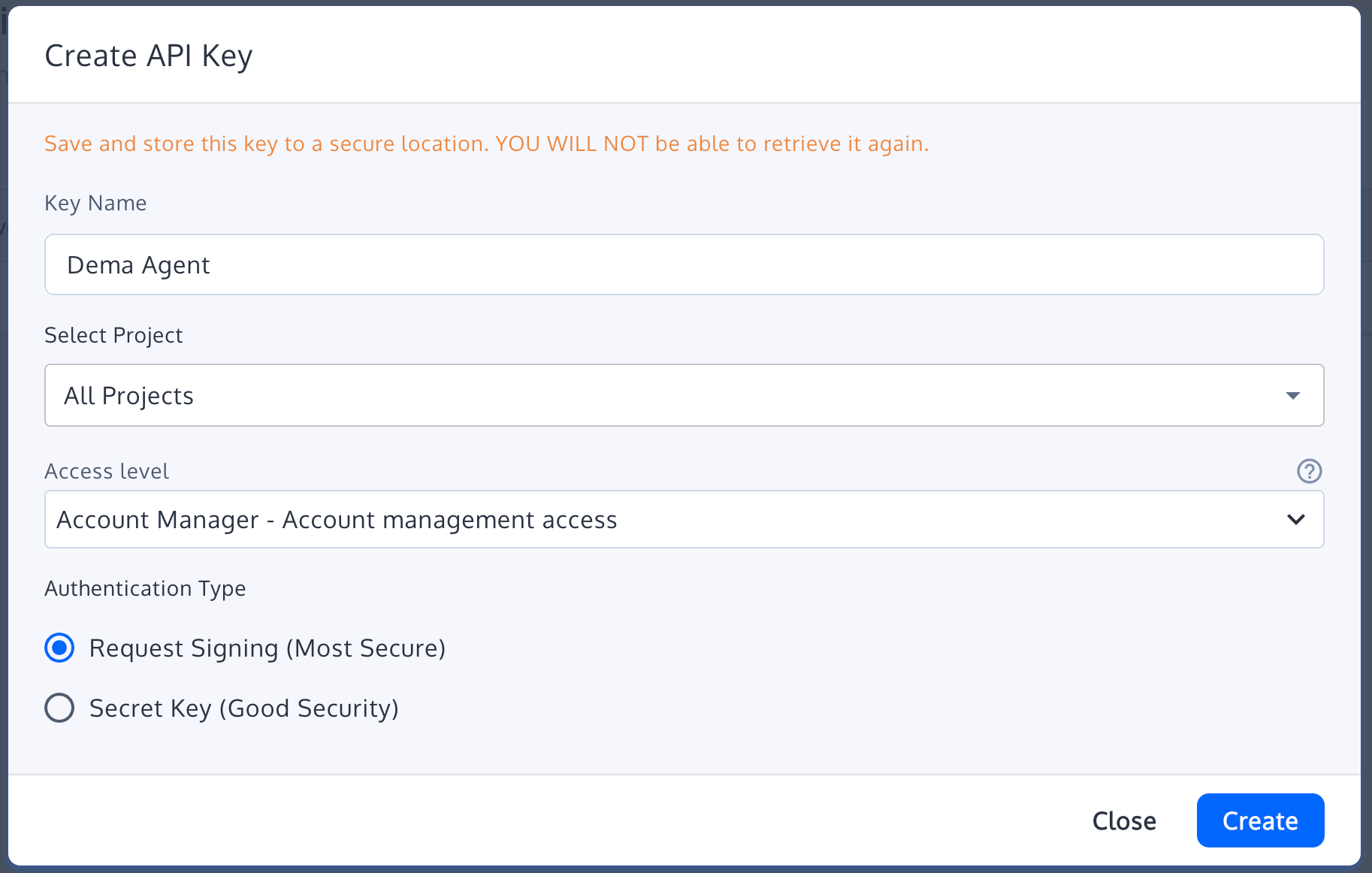 Click **Create**. Convert shows the **Key** and **Key Secret** once — copy both now. You will not be able to retrieve the Key Secret again.
 In Dema, go to **Agents → Settings → Integrations**, find **Convert**, and click **Connect**. Enter:
* **Application ID** — the **Key** from Convert.
* **Secret Key** — the **Key Secret** from Convert.
Click **Add**. Dema marks the integration as Active.
***
## Rotating the key
Convert API keys do not expire. To rotate, create a new Request Signing key in Convert, click **Reconnect** on the Convert integration card in Dema, and enter the new Key and Key Secret. Delete the old key in Convert once the new one is connected.
***
## Troubleshooting
Check that the key is a **Request Signing** key, not a Secret Key — Dema only supports Request Signing. If you are unsure, create a new Request Signing key and reconnect.
The key only covers the projects and access level you chose when you created it. Create a key scoped to the right projects (or **All Projects**) with **Account Manager** access, then reconnect.
Convert shows the Key Secret only once. Create a new Request Signing key in Convert and reconnect in Dema.
If you are still stuck, contact [support](mailto:info@dema.ai) with the error message you see.
***
## Additional resources
* [Convert REST API v2 documentation](https://api.convert.com/doc/v2/)
In Dema, go to **Agents → Settings → Integrations**, find **Convert**, and click **Connect**. Enter:
* **Application ID** — the **Key** from Convert.
* **Secret Key** — the **Key Secret** from Convert.
Click **Add**. Dema marks the integration as Active.
***
## Rotating the key
Convert API keys do not expire. To rotate, create a new Request Signing key in Convert, click **Reconnect** on the Convert integration card in Dema, and enter the new Key and Key Secret. Delete the old key in Convert once the new one is connected.
***
## Troubleshooting
Check that the key is a **Request Signing** key, not a Secret Key — Dema only supports Request Signing. If you are unsure, create a new Request Signing key and reconnect.
The key only covers the projects and access level you chose when you created it. Create a key scoped to the right projects (or **All Projects**) with **Account Manager** access, then reconnect.
Convert shows the Key Secret only once. Create a new Request Signing key in Convert and reconnect in Dema.
If you are still stuck, contact [support](mailto:info@dema.ai) with the error message you see.
***
## Additional resources
* [Convert REST API v2 documentation](https://api.convert.com/doc/v2/)