> ## Documentation Index
> Fetch the complete documentation index at: https://docs.dema.ai/llms.txt
> Use this file to discover all available pages before exploring further.
# Files and memory
> Upload reference files, browse conversation outputs, and review the notes your agent keeps in memory.
The Files tab contains the files you upload, the files an agent creates, and the notes it keeps for later conversations.
There are three kinds:
| | Who writes it | How long it lives |
| ---------------- | ------------- | ----------------------------------------- |
| **Shared files** | You | With the agent, across every conversation |
| **Memory** | The agent | With the agent, across conversations |
| **Outputs** | The agent | In one conversation |
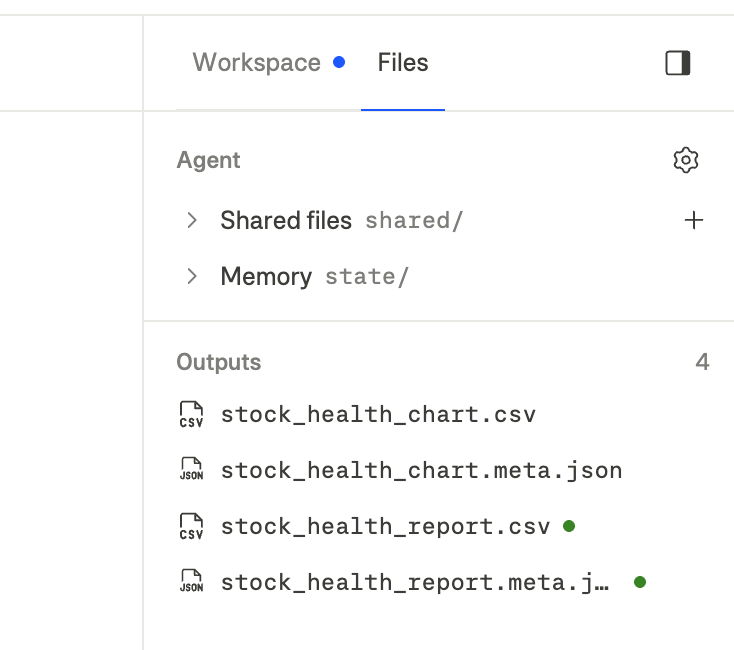
In a conversation, all three appear in one file tree:
***
## Where to find them
Open the workspace panel and select **Files**. Shared files and memory appear under the agent, with the current conversation's outputs below them. Select the cog next to **Agent** to open the agent's settings.
 The **Files** section of the agent's configuration shows the same tree.
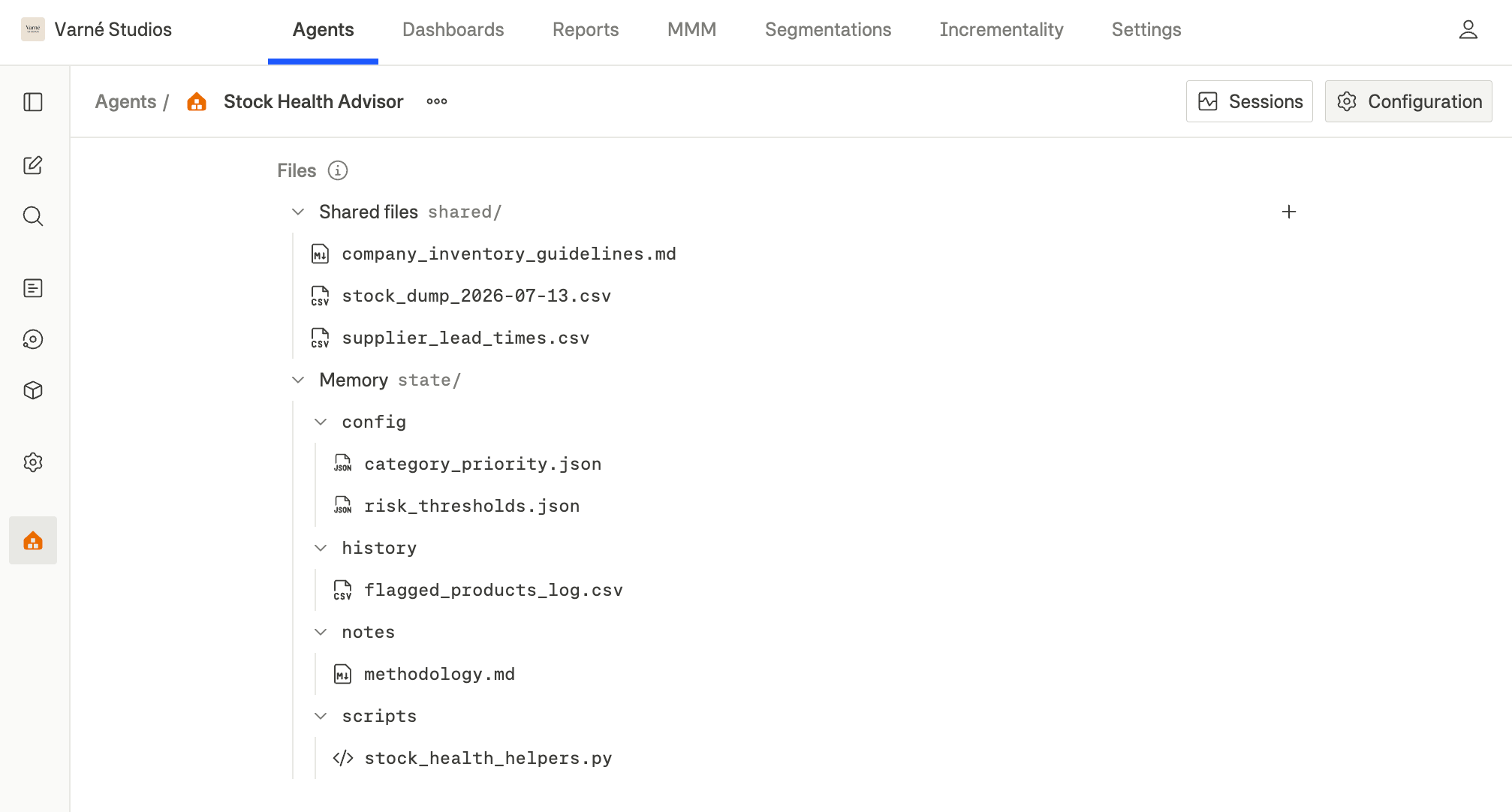 Both views show the same agent files.
The agent section appears when the conversation runs on one of your agents. Conversation outputs are always there.
***
## Shared files
Shared files are reference files you upload for the agent, such as brand guidelines, product catalogs, target margins, or campaign calendars. They are available in every conversation with that agent.
The agent can read them but never changes them.
| Action | How |
| ----------------------- | -------------------------------------------------------------------------------------------------------------------------------- |
| Add files | Select **+** next to **Shared files**, then choose **Upload files** or **Upload folder**. Uploaded folders keep their structure. |
| Preview a file | Select the file. |
| Remove a file or folder | Hover over it and select remove. The agent will no longer be able to read it. |
Use shared files for reference material the agent needs across conversations. Attach a file to the message when it is only relevant to that conversation.
***
## Memory
Memory contains notes the agent writes for itself. It can record information about your data, preferences, or earlier results and read those notes in later conversations.
You can review and manage these notes:
* Open a memory file to read it.
* Delete a memory file if the information is wrong or outdated. The agent will no longer have that note.
You cannot upload files to memory. Only the agent can write there.
The agent may mention a path such as `state/notes.md`. The `state/` folder is memory, and its name appears next to **Memory** in the file tree.
***
## Outputs
Files created during a conversation, such as CSV exports, images, and reports, appear under **Outputs**. Select a file to preview it or download it from the row.
Outputs belong to their conversation: a new conversation starts with an empty Outputs section.
***
## Spotting what changed
The file tree marks changes since you last opened it:
* A **green dot** marks a new file.
* An **orange dot** marks an updated file.
The **Files** tab itself shows a dot when there's something you haven't seen. Open or download a file and its mark clears.
***
## Mention a file with `@`
Type `@` in the message box to search integrations, apps, and files in the current session. To mention a file, search for a shared file, memory file, or earlier output:
It turns into a pill in your message.
The file is attached to your message.
Both views show the same agent files.
The agent section appears when the conversation runs on one of your agents. Conversation outputs are always there.
***
## Shared files
Shared files are reference files you upload for the agent, such as brand guidelines, product catalogs, target margins, or campaign calendars. They are available in every conversation with that agent.
The agent can read them but never changes them.
| Action | How |
| ----------------------- | -------------------------------------------------------------------------------------------------------------------------------- |
| Add files | Select **+** next to **Shared files**, then choose **Upload files** or **Upload folder**. Uploaded folders keep their structure. |
| Preview a file | Select the file. |
| Remove a file or folder | Hover over it and select remove. The agent will no longer be able to read it. |
Use shared files for reference material the agent needs across conversations. Attach a file to the message when it is only relevant to that conversation.
***
## Memory
Memory contains notes the agent writes for itself. It can record information about your data, preferences, or earlier results and read those notes in later conversations.
You can review and manage these notes:
* Open a memory file to read it.
* Delete a memory file if the information is wrong or outdated. The agent will no longer have that note.
You cannot upload files to memory. Only the agent can write there.
The agent may mention a path such as `state/notes.md`. The `state/` folder is memory, and its name appears next to **Memory** in the file tree.
***
## Outputs
Files created during a conversation, such as CSV exports, images, and reports, appear under **Outputs**. Select a file to preview it or download it from the row.
Outputs belong to their conversation: a new conversation starts with an empty Outputs section.
***
## Spotting what changed
The file tree marks changes since you last opened it:
* A **green dot** marks a new file.
* An **orange dot** marks an updated file.
The **Files** tab itself shows a dot when there's something you haven't seen. Open or download a file and its mark clears.
***
## Mention a file with `@`
Type `@` in the message box to search integrations, apps, and files in the current session. To mention a file, search for a shared file, memory file, or earlier output:
It turns into a pill in your message.
The file is attached to your message.
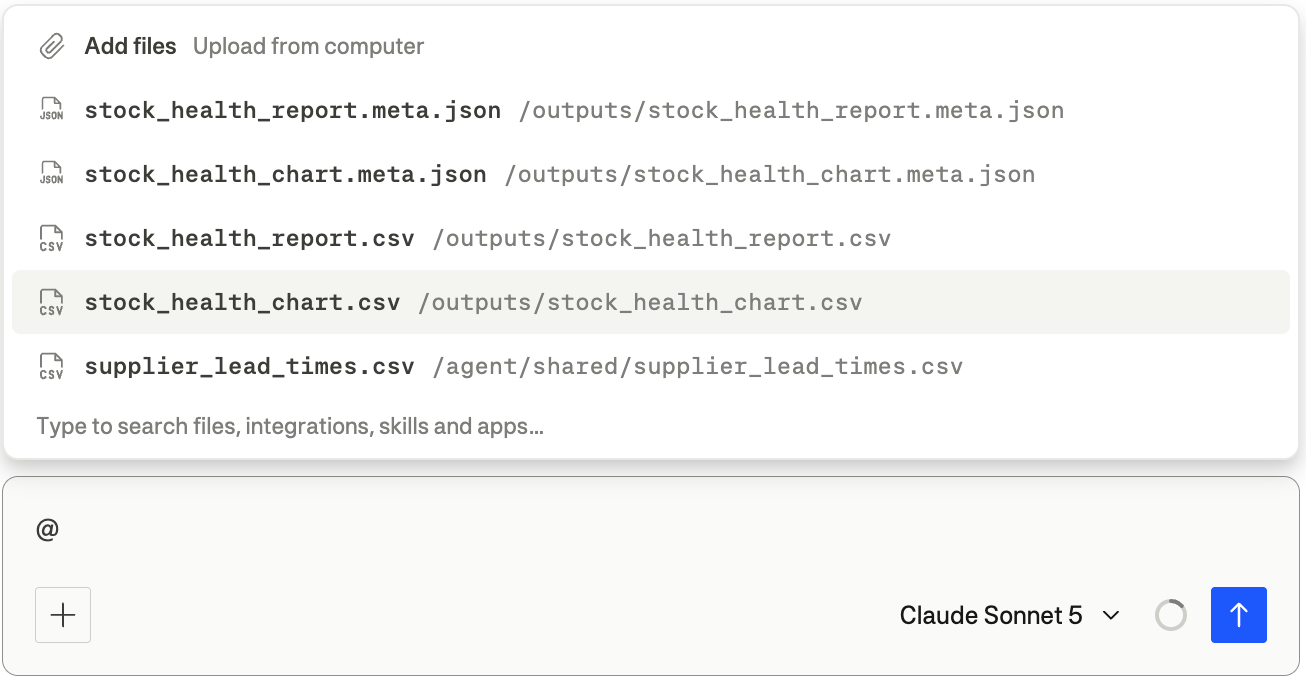 After you send the message, hover over a file pill for a quick view or select it to open the full preview.
To attach a new file, select **Add files** from the `@` menu.
***
## Shared conversations
Files are read-only when you open someone else's shared conversation. You can preview and download them, but only people who can run the agent can add or remove files.
After you send the message, hover over a file pill for a quick view or select it to open the full preview.
To attach a new file, select **Add files** from the `@` menu.
***
## Shared conversations
Files are read-only when you open someone else's shared conversation. You can preview and download them, but only people who can run the agent can add or remove files.